Every port, and who's behind it
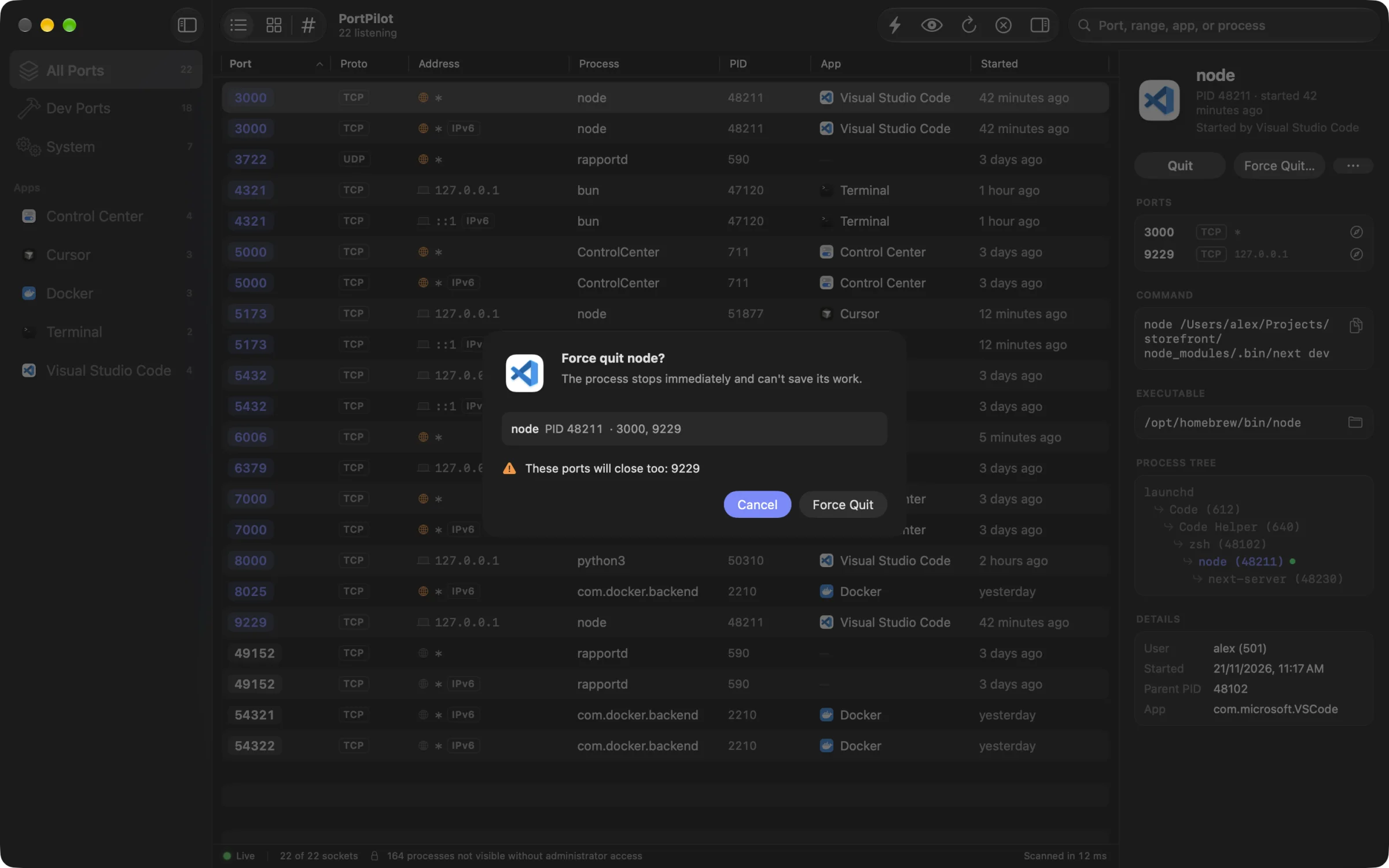
TCP and UDP, IPv4 and IPv6. Each socket is traced to its process, then to the app that launched it, so “node” becomes “node, started by Visual Studio Code”.
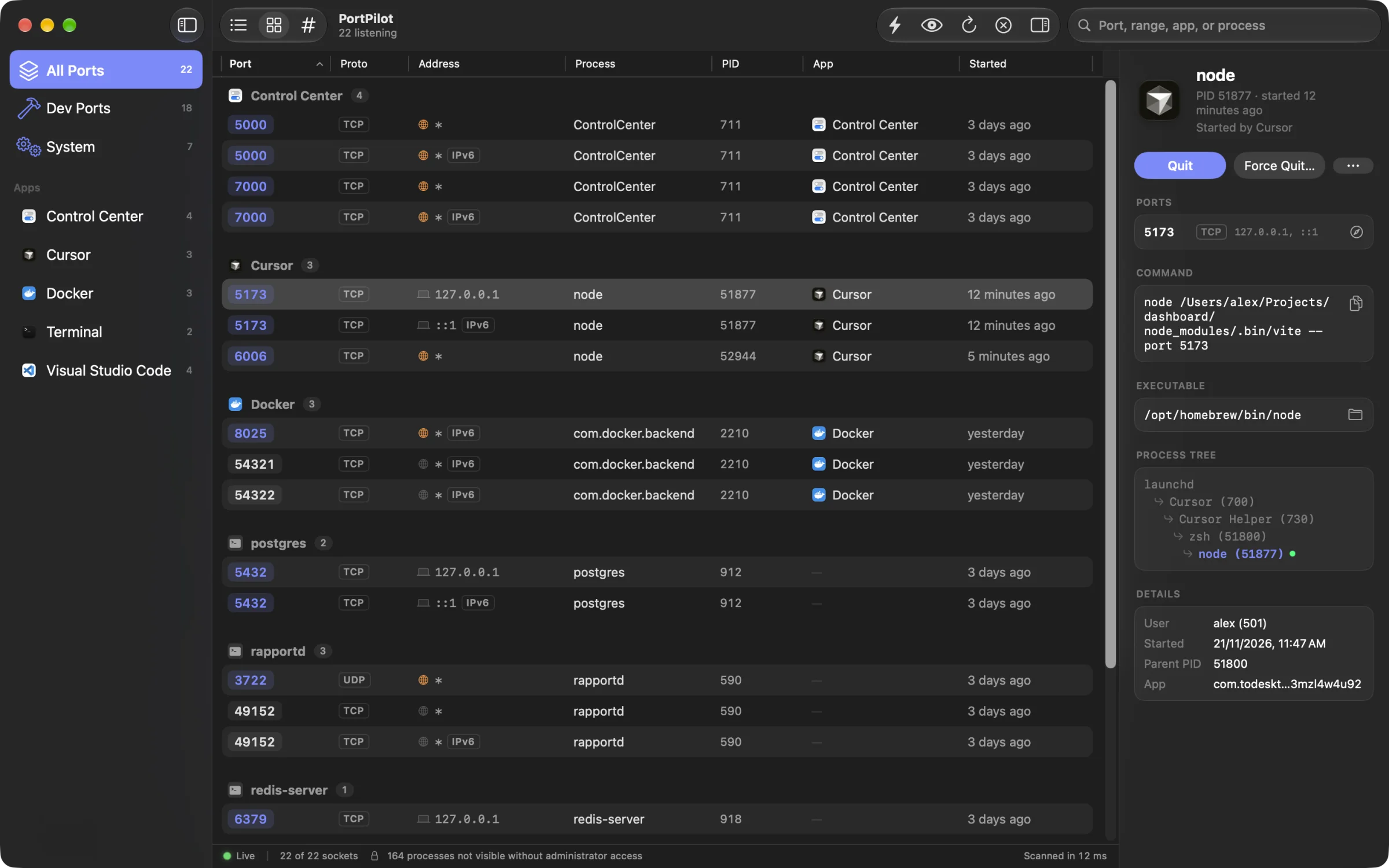
PortPilot shows every listening port on your Mac, the process behind it and the app that started it. Then it stops it safely, in seconds.
v1.0.0 · macOS 15 or later · Notarized by Apple
Features
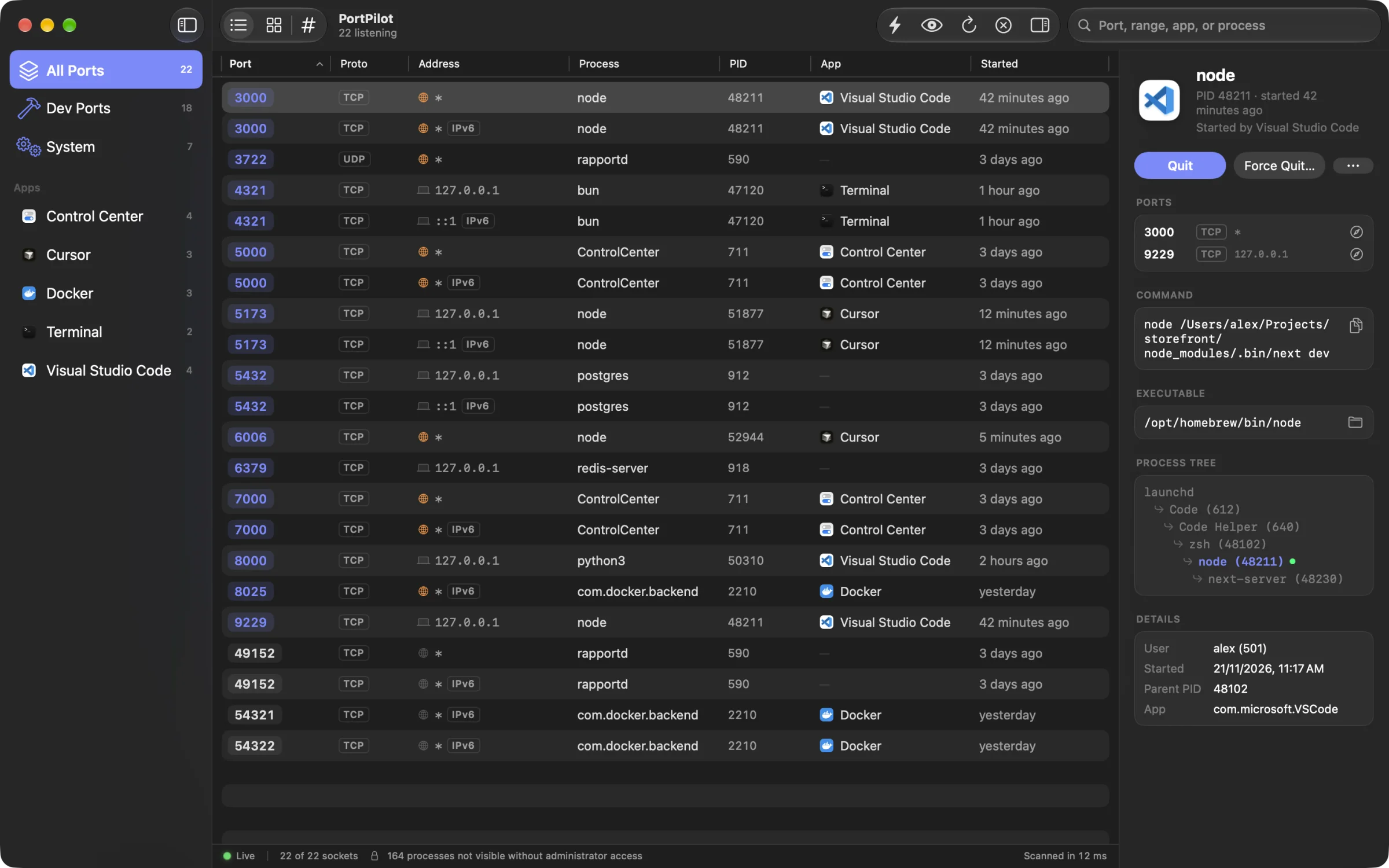
A native Mac app that reads sockets straight from the system, then explains them like a person would.
TCP and UDP, IPv4 and IPv6. Each socket is traced to its process, then to the app that launched it, so “node” becomes “node, started by Visual Studio Code”.
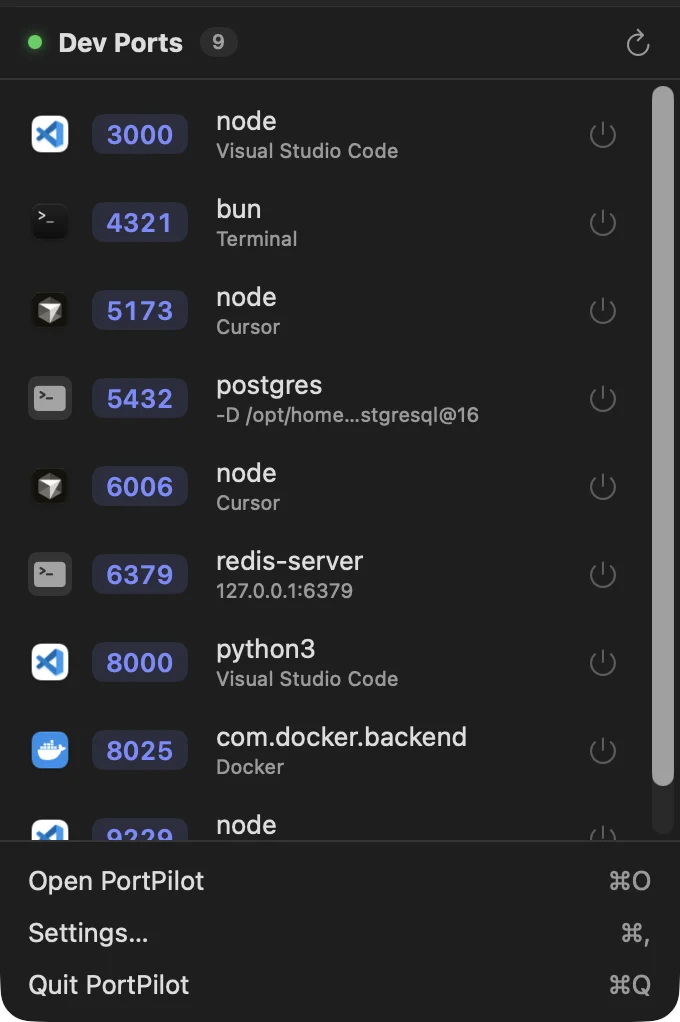
Your dev servers and a one-click Quit, without opening a window.
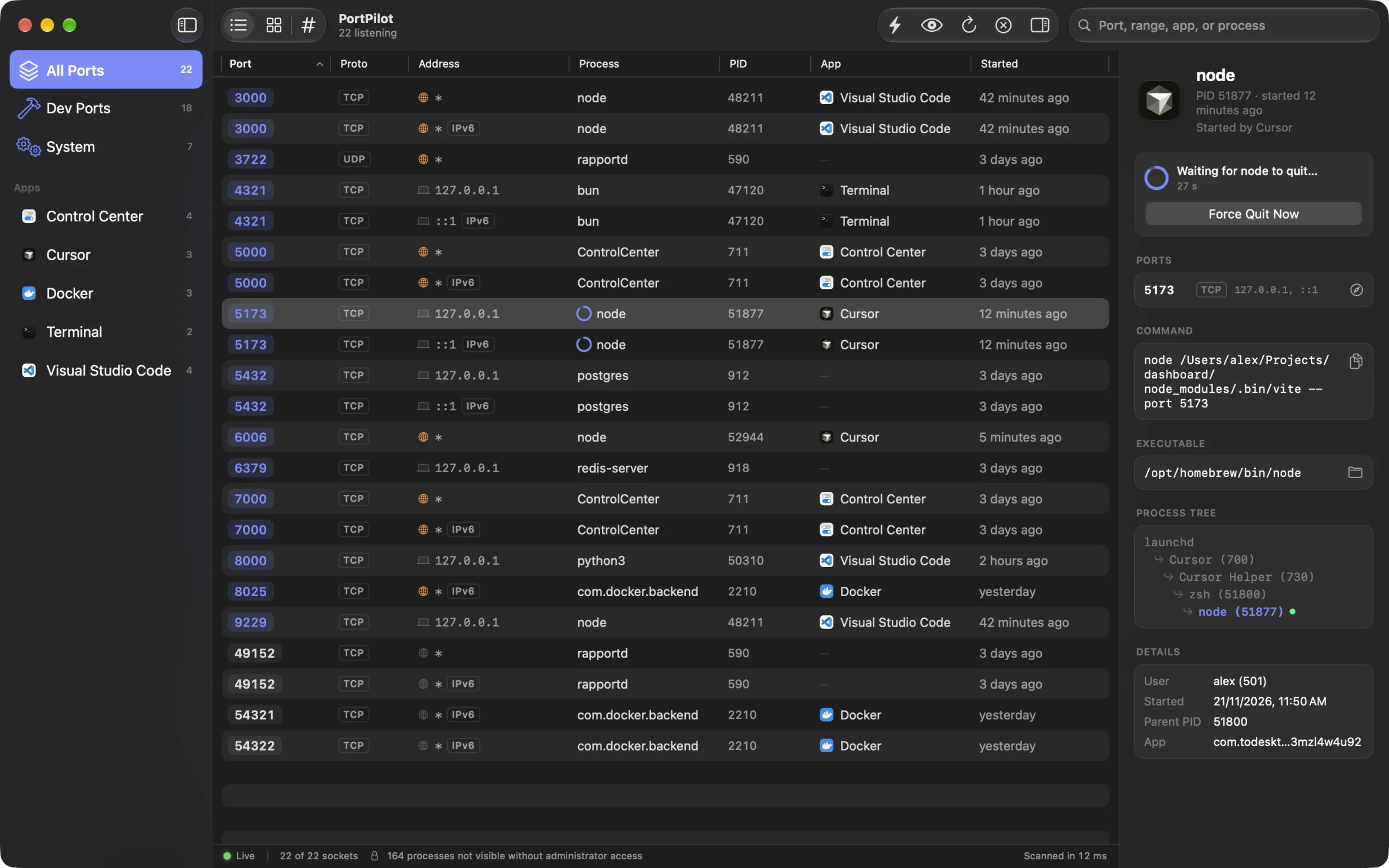
PortPilot asks politely first, shows the grace period counting down, and only offers Force Quit if the process is still there.
Filter the list the way you'd say it out loud. Tokens combine, so tcp 3000-3999 app:code just works.
3000one port3000-3999a rangeapp:codean app's portstcpor udp, v4, v6user:rootby ownerAn orange globe marks dev servers reachable from other devices on your network. A laptop means it's only you.
Full command line, executable path, process tree and launchd job, one click from Finder or your browser.
launchd
 └ Code (612)
   └ zsh (48102)
└ node (48211) ●Refreshes on its own without flicker, slows down when nobody is looking, and scans in a few milliseconds.
How it works
This is Free a Port, the ⌘K panel inside PortPilot. Go ahead: type 3000 and press Return.
01
From anywhere in PortPilot, or use the menu bar without opening the window.
02
Digits match ports, exact match first. Words search by process or app.
03
PortPilot asks the process to quit and tells you when the port is free.
Safety
macOS recycles process IDs. PortPilot re-reads a process's start time right before every signal, so a recycled ID can never be stopped by mistake.
launchd, WindowServer, loginwindow, the kernel and PortPilot itself can't be signalled. They show a lock, not a Quit button.
Force Quit and process-tree kills confirm first, with Cancel as the default button. Apps are never force quit automatically.
If launchd or a tool like nodemon would restart the process, PortPilot says so and offers the command that really stops it.
Privacy
PortPilot has no server to talk to. It makes no network requests, collects no analytics and needs no account. It runs as you, so it never asks for an administrator password.
FAQ
Yes. There is no trial, no paid tier and no in-app purchase. Download it and use it.
Something else? Ask us.
Free for macOS. Installed in under a minute.
Download PortPilot 1.0.0macOS 15 or later · Signed and notarized